Showing posts with label system. Show all posts

MyUninstaller v1.70 - Alternative to the standard add / remove control panel module


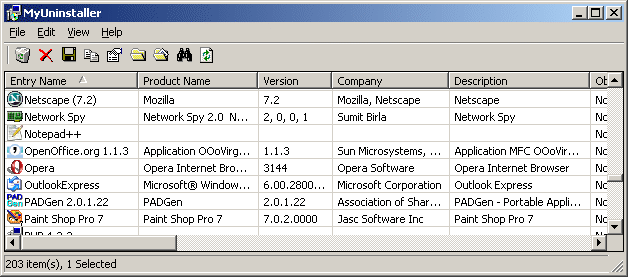
MyUninstaller is an alternative uninstaller utility to the standard Add/Remove applet of Windows operating system. It displays the list of all installed application, and allows you to uninstall an application, delete an uninstall entry, and save the list of all installed applications into a text file or HTML file.
MyUninstaller also provides additional information for most installed applications that the standard Add/Remove applet doesn't display: product name, company, version, uninstall string, installation folder and more.

System Requirements
This utility works on any version of Windows - from Windows 98 to Windows 7. You should log-in to the system as admin user, so the uninstall process will work properly.

Important Notice
When you uninstall a software, MyUninstaller utility is not directly responsible to the uninstall process. MyUninstaller simply run the uninstall module provided by the software that you want to uninstall. So, if from some reason the uninstall process fails, you should contact the author of the software that you want to uninstall, not to the author of MyUninstaller.
Download MyUninstaller - Add / Remove Alternative

Enjoy! Please click on my ads as token of appreciation. Thank you. 
 

WinDirStat - disk usage analyzer, know what's on your drive

WinDirStat is a disk usage analyzer and cleanup tool packaged as a portable app, so you can see exactly what's on your device or a host computer's hard drive and easily free up space.

 
The treemap represents each file as a colored rectangle, the area of which is proportional to the file's size.

WinDirStat is a disk usage stats viewer and cleanup tool with many handy features:
  • Directory list, Treemap and Extension list views so you can view your files the way you want
  • Coupling. Select an item in the directory list: The treemap highlights it; and vice versa
  • Zooming
  • Built-in cleanup actions including Open, Show Properties, Delete
  • Works with network drives and UNC paths
  • 'Create disk usage report' option
  • Language can be set to Czech, Dutch, Estonian, Finnish, German, English, Spanish, French, Hungarian, Italian, Polish and Russian
  • ANSI and Unicode: The ANSI and Unicode versions of WinDirStat are both included with the launcher automatically launching the correct version depending on the operating system

Download

Enjoy! Please click on my ads as token of appreciation. Thank you.

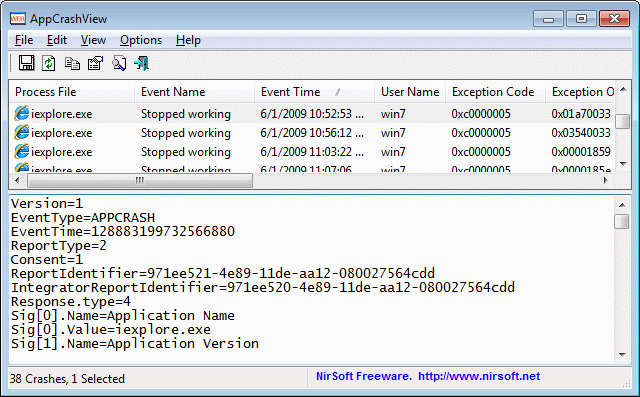
    AppCrashView - analysis your application crash detail

    AppCrashView is a small utility for Windows Vista and Windows 7 that displays the details of all application crashes occurred in your system. The crashes information is extracted from the .wer files created by the Windows Error Reporting (WER) component of the operating system every time that a crash is occurred. AppCrashView also allows you to easily save the crashes list to text/csv/html/xml file.


    System Requirements
    For now, this utility only works on Windows Vista, Windows 7, and Windows Server 2008, simply because the earlier versions of Windows don't save the crash information into .wer files. It's possible that in future versions, I'll also add support for Windows XP/2000/2003 by using Dr. Watson (Drwtsn32.exe) or other debug component that capture the crash information.

    Download

    Enjoy! Please click on my ads as token of appreciation. Thank you.

    BlueScreenView - analysis your BSOD mini dump


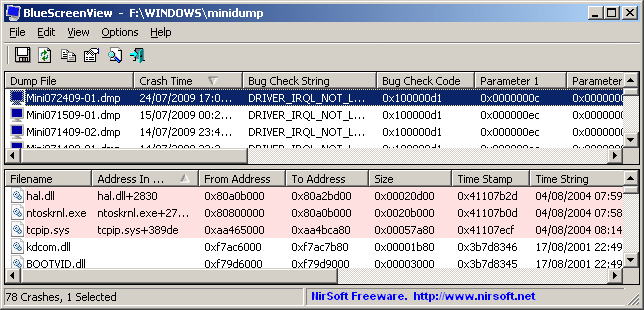
    BlueScreenView scans all your minidump files created during 'blue screen of death' crashes, and displays the information about all crashes in one table. For each crash, BlueScreenView displays the minidump filename, the date/time of the crash, the basic crash information displayed in the blue screen (Bug Check Code and 4 parameters), and the details of the driver or module that possibly caused the crash (filename, product name, file description, and file version).


    For each crash displayed in the upper pane, you can view the details of the device drivers loaded during the crash in the lower pane. BlueScreenView also mark the drivers that their addresses found in the crash stack, so you can easily locate the suspected drivers that possibly caused the crash.

    BlueScreenView Features
    • Automatically scans your current minidump folder and displays the list of all crash dumps, including crash dump date/time and crash details.
    • Allows you to view a blue screen which is very similar to the one that Windows displayed during the crash.
    • BlueScreenView enumerates the memory addresses inside the stack of the crash, and find all drivers/modules that might be involved in the crash.
    • BlueScreenView also allows you to work with another instance of Windows, simply by choosing the right minidump folder (In Advanced Options).
    • BlueScreenView automatically locate the drivers appeared in the crash dump, and extract their version resource information, including product name, file version, company, and file description.

    System Requirements
    • BlueScreenView works with Windows XP, Windows Server 2003, Windows Server 2008, Windows Vista, and Windows 7, as long as Windows is configured to save minidump files during BSOD crashes. If your system doesn't create MiniDump files on a blue screen crash, try to configure it according to the followinf article: How to configure Windows to create MiniDump files on BSOD
    • BlueScreenView can read the MiniDump files of both 32-bit and x64 systems. 

    Download

    Enjoy! Please click on my ads as token of appreciation. Thank you.
    Related Posts Plugin for WordPress, Blogger...